A Writerdeck Experiment
I saw a post on the “Veronica Explains” blog about setting up a “writerdeck” and I wanted to give it try. If you’re interested in a focus approach to writing, you might want to try it too.
A “Writerdeck”, You Say?
What’s a writerdeck? It’s a computer that only has a text editor to keep you focused on writing. There’s been a resurgence of retro, hacked together, DIY “decks” like in William Gibson’s novel “Neuromancer“. Some people are making their own custom hardware which is really cool. But the Veronica Explains blog took the approach of “hey, I’ve got an old laptop that still works, I’ll recycle it into a writerdeck”. I like her idea because, while I don’t have the skills to do custom hardare, I do have an old laptop and the urge to write.
I followed her guide, until I didn’t. Here’s some things I did differently:
Trying Micro Instead of Neovim: I know enough Vim to be dangerous, but at this point I don’t think we’re ever going to be friends, so I chose Micro instead.
Not Using tmux: I liked Veronica’s custom tmux setup, but it interfered with Micro’s ability to use the mouse. I could click around in Micro, but could not select text by clicking and dragging. I tried a few different workarounds, but decided to skip tmux so I could get good mouse support.
Added Sweet Text Art: I found an ASCII art website, so my login screen shows a neat little ASCII bookshelf. It’s as simple as pasting the art into /etc/issue.
Caps Lock to Ctrl: On all my other computers I change the Caps Lock key into another CTRL key. I usually use a GUI to do this, but that wasn’t an option on the writerdeck. While messing with other kmscon settings I found a commented out line for xkb-options, which sounded a lot like the XKBOPTIONS that I was used to. I changed it to this:
xkb-options=ctrl:nocaps
After rebooting, my caps lock was acting just like a CTRL key.
The Font: Iosevka
Veronica recommended the font Iosevka, which I haven’t used before but it does look really good. I chose the “slab” (serif) variant to make my screen look more like an old typewriter’s font.
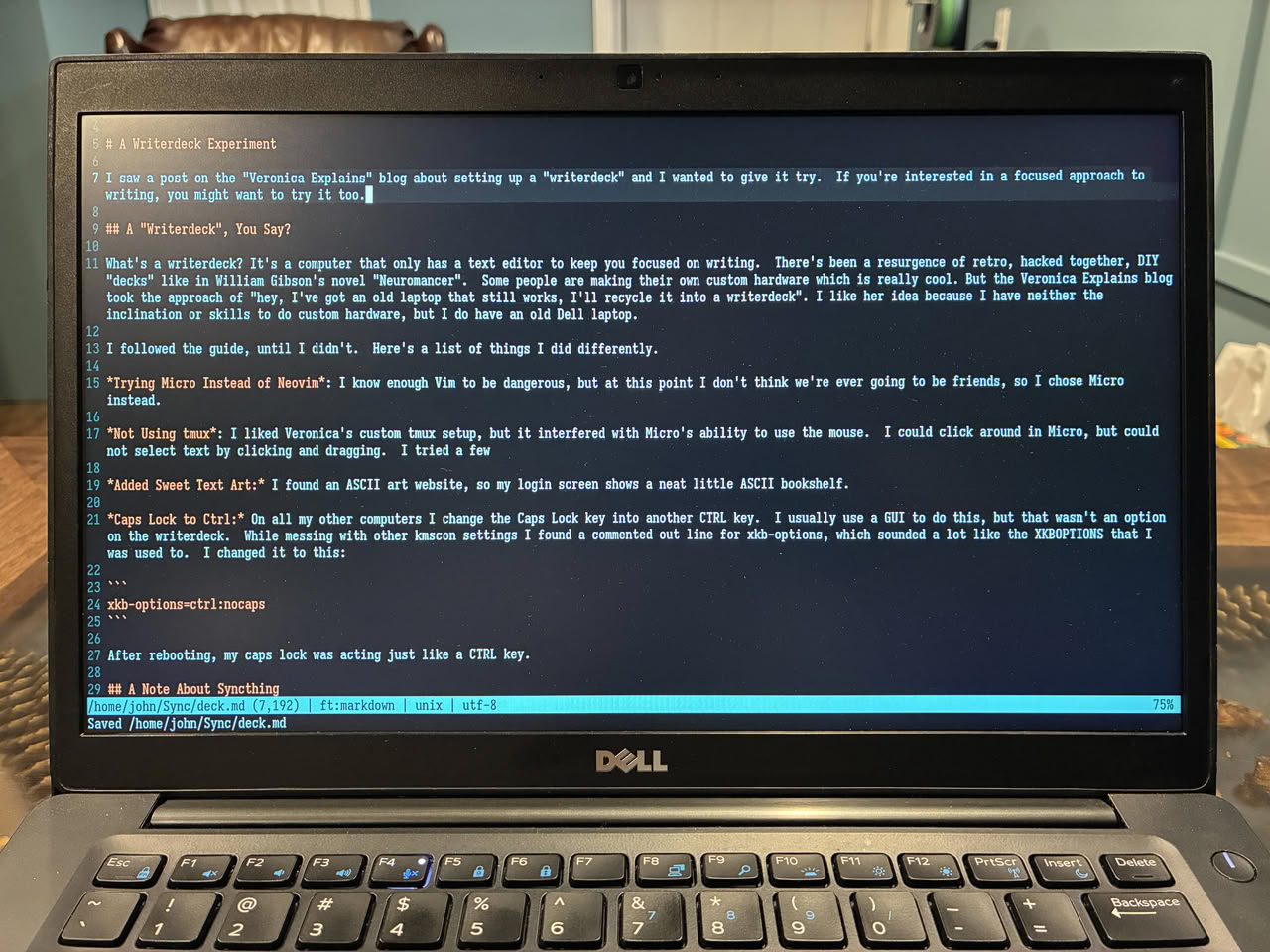
My writerdeck, with the draft version of this blog post
Learning Micro
As part of this writing deck experiment I’ve decided to learn the micro text editor better. I’ve been using it for a few years now but never learned much besides open, save, and quit.
Battery Indicator: I wrote a plugin!
Veronica’s setup includes a useful battery indicator in the tmux status bar. Since I’m not using tmux I had to find a different way of seeing battery capacity. I found that Micro supports plugins, but they’re written in Lua, which I’ve never used. However, there’s already a plugin for extending the status bar (named status because the Micro people are sensible). I reviewed how it worked and wrote my own version that uses Linux’s /sys/class/power_supply system to read the battery capacity and check if the battery was charging.
To use the plugin, I set the right-hand status like this:
set statusformatr "$(batt.charging) $(batt.capacity) "
I’ve published the plugin at Codeberg.
Quirks with kmscon
In GUI text editors, I’m used to using SHIFT + arrow keys to select text. But using Shift+Up or Down didn’t work to select text above/below. I found this was caused by kmscon grabbing those keys as shortcuts for scrolling the terminal output. I fixed this by adding these lines to kmscon.conf and rebooting:
grab-scroll-up=
grab-scroll-down=
A Note About Syncthing
Having a computer that isn’t “online” in the traditional sense is good for focus, but I needed a way to get my writing back to my main computer for editing/publishing. I already use a program called Syncthing for this on my regular laptop and desktop. Veronica recommended it too, but didn’t go into much detail about the setup. I had never set it up on a text-only device before, so here’s a short summary of what I did:
- Installed syncthing.
- Ran Sycnthing with
syncthing serve --gui-address=0.0.0.0:9595so that I could connect to the GUI from my regular computer (just once!) to configure Syncthing. Normally it only listens on 127.0.0.1 for security. - Set up a sync folder, which is where I’ll save all my writing.
- Enabled Syncthing as a user service with
systemctl enable syncthing.service --userso that it runs whenever I log in.
Now, whenever I’m connected to WiFi, my writerdeck can sync my files back to my home computer automatically.
Will I Stick With It?
I don’t know yet, but there’s a lot about this setup that’s appealing. It certainly cuts down on distractions; there’s no beeps for incoming messages, no red badges on an email app. There’s not even a web browser to help me get distracted while supposedly doing research. Everything written on the writerdeck is either already researched, or just nonsense I completely made up on the spot :D
If you want to write but have trouble staying focused, I’d recommend trying it out.
Comments