Writerdeck Part 2: Do Over
At the end of my previous post about using a writerdeck, I asked “will I stick with it?” Turns out the answer is “yes but first I have to start over”. I liked the concept but there were some issues, mainly with keyboard support. I also wrote another plugin for the Micro text editor, this time one for checking if a file is synced with Syncthing.
My Issues
My main goal with Micro is to have keyboard shortcuts similar to the text editors on KDE and Windows (particularly PyCharm). However:
- Modifier keys like Control and Shift didn’t work with the arrow keys.
- Kmscon’s default bindings interfered with some of Micro’s defaults (although this was configurable, it was an extra step)
- The version of Micro shipped with Debian is older and doesn’t support some of Micro’s new syntax for defining escape code bindings.
- The keybinds just work in graphical terminals like KDE’s Konsole, so I know it’s not Micro’s fault.
Cage & Foot: A Match Made in Heaven
After faffing about trying to get showkey, dumpkeys, and loadkeys to work I gave up on Kmscon and the generic Linux tty. Although I did find Julia Evans’ interesting write-up of input methods like readline and libedit, which gave me some insights into how text input has historically worked on UNIX-like systems.
I finally found a solution in two unlikely named projects: Cage, and Foot. What the heck are Cage and Foot, and what do they do?
- Cage - provides a basic graphical (Wayland) environment that runs a single program in full screen.
- Foot - a lightweight terminal emulator for Wayland that supports (most of) the shortcuts I wanted. Also handles touchpad scrolling without additional setup.
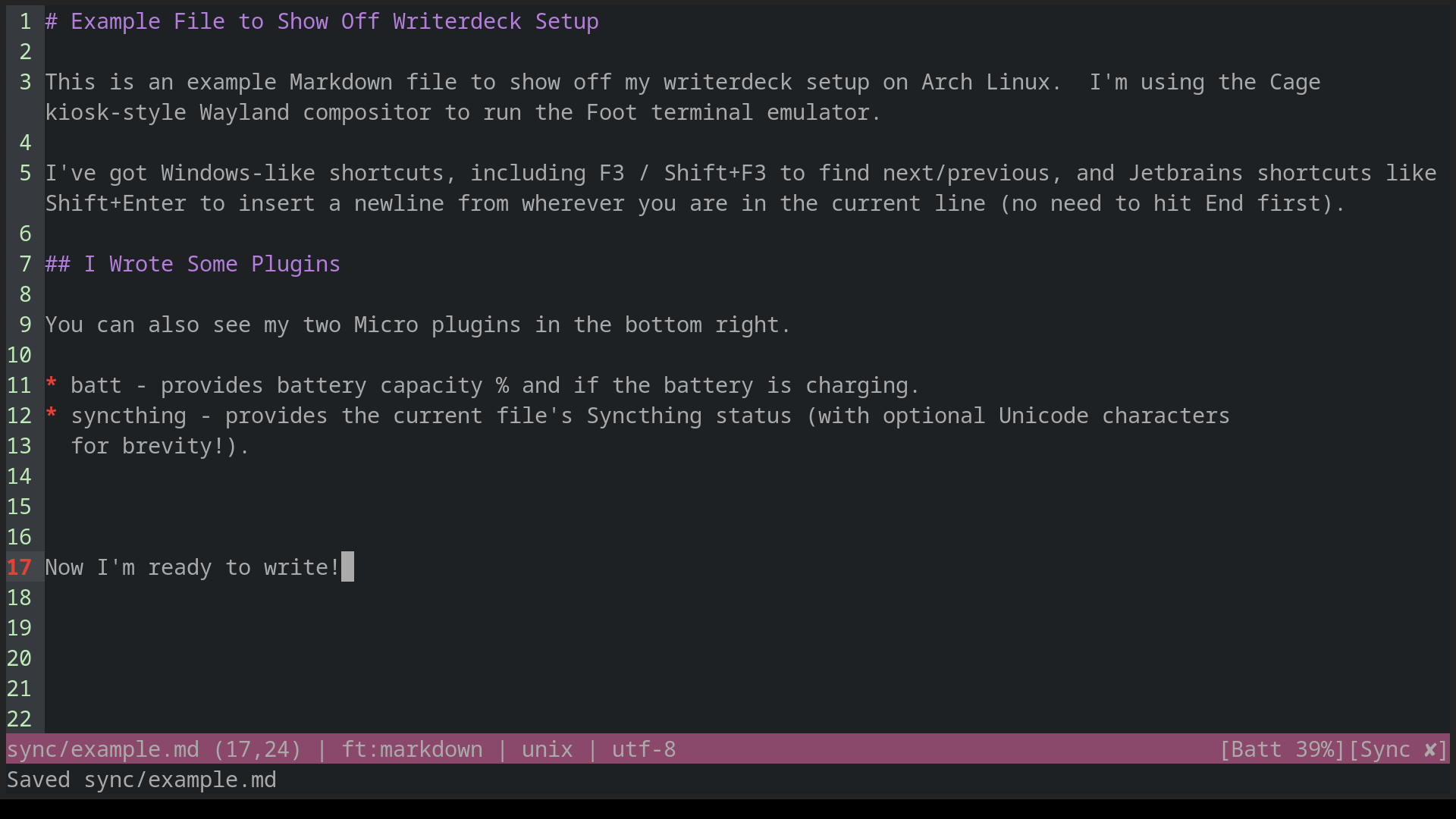
So I login, run Cage, which runs Foot, which gives me easy support for the keyboard shortcuts I’m used to, and lets me use a nice TrueType font. Visually it’s almost identical to the Kmscon version, but without all the frustration.
Hello, Arch
Remember how I said that the Debian version of Micro is too old? Debian’s version of Foot is also older and missing some keyboard input fixes. I didn’t want to mess with building my versions of Micro and Foot, so, logically, I decided to switch to Arch. Now this isn’t as wild an idea as it might seem at first, because I’m used to Arch since I’ve been using it for about two years on my main computer.
Micro Setup in Arch
The setup couldn’t be simpler. After installing the base system, here’s what else I installed:
sudo pacman -S cage foot foot-terminfo micro syncthing bash-completion acpid ttf-iosevkatermslab-nerd terminus-font
Explanation:
cage- environment for Foot to run in.foot- terminal emulator.foot-terminfo- provides extra features for foot.micro- text editor of choice.syncthing- used to sync files between writerdeck and main computer.bash-completion- allows autocomplete of commands.acpid- support for things like brightness control buttons on my laptop.ttf-iosevkatermslab-nerd- a good looking monospace font to use with Foot.terminus-font- a font for the regular Linux terminal that comes in sizes large enough to work on a high resolution display.
Configuration
I’ll explain below what I changed, but if you want to download my config files, here they are.
Micro Keybinds
Since JSON is a bad format that doesn’t allow real comments, allow me to explain a few things here
{
    "Ctrl-/": "lua:comment.comment",
    "Ctrl-Right": "WordRight",
    "Ctrl-Left": "WordLeft",
    "Ctrl-Shift-Right": "SelectWordRight",
    "Ctrl-Shift-Left": "SelectWordLeft",
        // These next two are variations of Shift+Enter, which inserts a newline regardless of where you are in the current line.  I'm used to it from PyCharm.
    "\x1b[27;2;13~": "EndOfLine,InsertNewline",
    "\x1bOM": "EndOfLine,InsertNewline",
       // The next four lines are variations of using F3 to "find next/prev".  Why \x1bO2R? Who knows?
        "F3": "FindNext",
    "Shift-F3": "FindPrevious",
        "\x1bO2R": "FindPrevious",
       "\x1bOR": "FindNext",
        // Why does backspace send Ctrl-H? Again, who knows?
    "CtrlH": "DeleteWordLeft",
    "CtrlDelete": "DeleteWordRight"
}
Shell
Added code to ~/.bash_profile to automatically launch cage / foot if I’m on the default terminal (tty1)
#
# ~/.bash_profile
#

# regular .bashrc inclusion from Arch defaults
[[ -f ~/.bashrc ]] && . ~/.bashrc

# Turn capslock into a ctrl key
export XKB_DEFAULT_OPTIONS="ctrl:nocaps"

# if we're logging into /dev/tty1 then run cage/foot
if [[ $(tty) == /dev/tty1 ]]; then
    exec cage foot
fi
Foot
The only thing I changed in ~/.config/foot/foot.ini was setting the font, like this:
font=IosevkaTermSlab Nerd Font Mono Medium:size=22
Regular Terminal Font
I set the terminal font in /etc/vconsole.conf, which looks better on higher resolution screens:
KEYMAP=us
FONT=ter-124b
A New Plugin: Syncthing Status
In my first writerdeck post I mentioned that I set up Syncthing to sync my files back to my main computer. One issue I had with this is that I couldn’t easily see that status of each file in Micro. To fix this, I wrote a Micro plugin that talks to Syncthing and gets the current file’s synchronization status, then displays it in the status bar. You can get it here
Will I Stick With It?
After all the work I put into just setting up the keyboard shortcuts, yes, I definitely will.
Comments